1. Open the LS Retail CAL Test Tool page
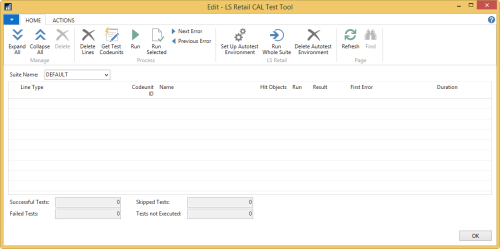
To run the LS Nav Auto Tests you must open the Object Designer, find Page 52099300 “LS Retail CAL Test Tool”, and run it.
This is what the page looks like:
2. Set up the Auto Test Environment
Start by setting up the Auto Test Environment:
Click the Set Up Auto Test Environment action. This will create or update the LS Retail Test Suites. It will then insert two new Companies, ToCompany and SubCompany. These companies are empty, that is all tables are empty. They will be used in the Data Director tests which are in Test Suites DD and DD2.
When these companies have been created, the system copies the current company to a new company called CRONUS ToCompany. This company is used in the Web Request or Web Service tests in Test Suite WR.
Note: In this version of the LS Nav Auto Tests, some of the replication tests in suites DD and DD2 might require some tables to be empty in the ToCompany, which is used as a destination company. So if you want to run the replication tests again, you must set the Auto Test Environment up again.
3. Run the Auto Tests
Now you are ready to run the LS Nav Auto Tests:
In the Suite Name field, select the Test Suite you want to run (DD, DD2, LSRETAIL or WR).
Note: Currently, you must run all the tests in the whole suite. Some of the tests can be run individually, but the DD, DD2, and WR tests might encounter problems.