When you are running the KDS, it is important to be able to monitor the system and know what to do if services are down or not running properly.
The LS Retail KDS system uses two services:
- The NAS server. If it is not up and running, no KOTs are sent to the KDS.
- The KDS service. If the NAS cannot connect to the KDS, no KOTs are sent to the KDS.
In the Hospitality POS
In order to see the status of Services define the Service button on the Statusbar:

The Tags used to describe the status of the services are:
<#KDSNASServices>Services are Running
<#KDSError>Error on KDS service
<#NASError>Error on NAS service
<#NASSchError>Error on NAS Scheduler service
Here is a typical definition of the Service button on the Status bar:
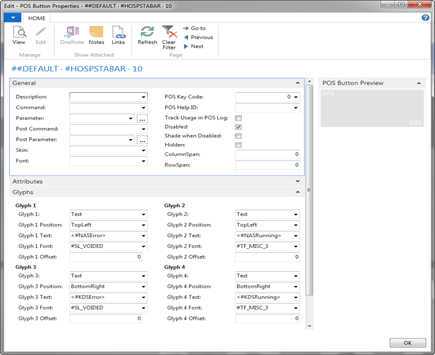
The glyph shows whether there is a NAS error (the service or scheduler is not running) or a KDS error (the NAS cannot connect to KDS service).
Restarting the KDS services
In case of an unexpected error or when a problem occurs that corrupts the system in a way it is not functional or not working as desired, it might be necessary to restart the system.
The user can either:
- Restart the computer which has the services for KDS or
- Restart the services
Option 1 usually is more effective and takes some time so it might be a good idea to restart the services first, the Kitchen and NAS service.
For the user’s convenience it is easy to run a bat file to restart the services.
Below is how the bat file should look. Take care to enter the correct NAS Hostname and KDS Kitchen Service name.
RESTART KDS.BAT
@echo off
rem - Put NAS service name here:
set NAS=HOSTNAME-SQL
rem - Put LS Retail Kitchen Service name here:
set KDS=KitchenDisplayService
net stop %NAS%
net stop %KDS%
net start %KDS%
net start %NAS%
echo Services restarted.
pause
The bat file requires some modifications, two variables %NAS% and %KDS% must be set with the NAS service name and Kitchen Service name, respectively.
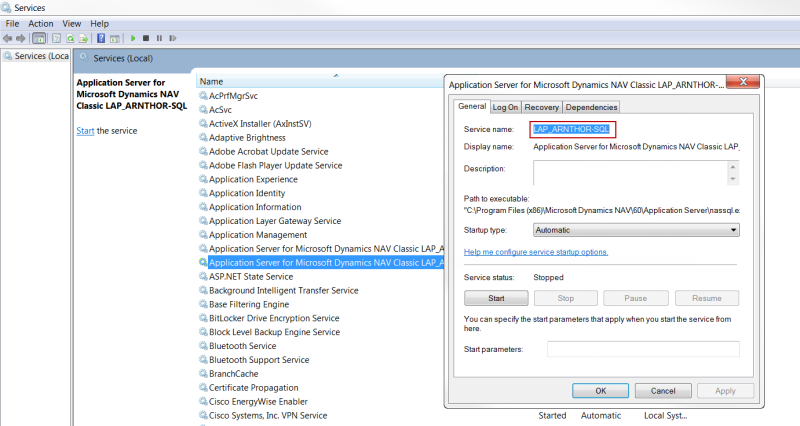
The services names can be gathered in the Services window (Start Menu > Control Panel > Administrative Tools > Services) by right clicking the desired service and select Properties.
Example of to find these variable is in the image below.