There are two ways for a CO to end up in a Put Back state.
- The user presses the Put Back button in the collect process.
- The time limit set for customer collection expires. The time limit of expiration is controlled in the CO setup in Back Office. This process is controlled through the Retail Message module. When an order is picked, a Retail Message with a future date reference is created to be shown when the time limit for the order is reached. If the order is collected before the time limit, this future Retail Message is marked as processed and it never becomes active for the users.
When a staff member is to start the Put Back process for an order, he or she begins by accessing the Put back list on the POS.
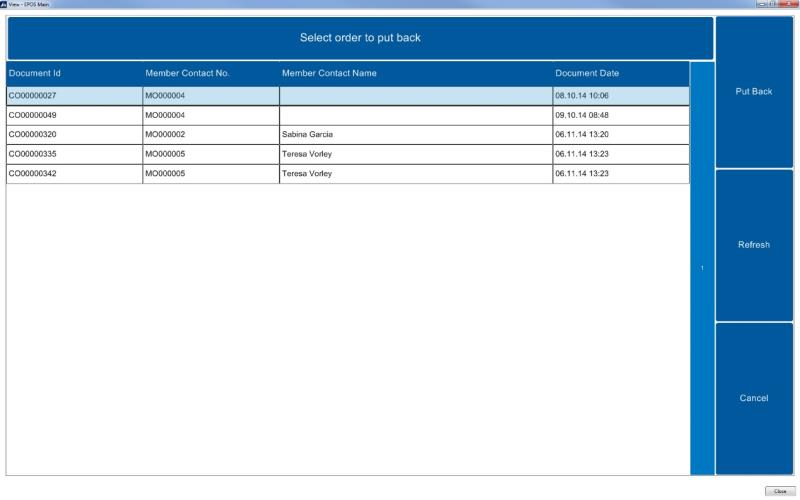
With an order selected, the staff member presses the Put Back button to open that order in the Put Back panel.
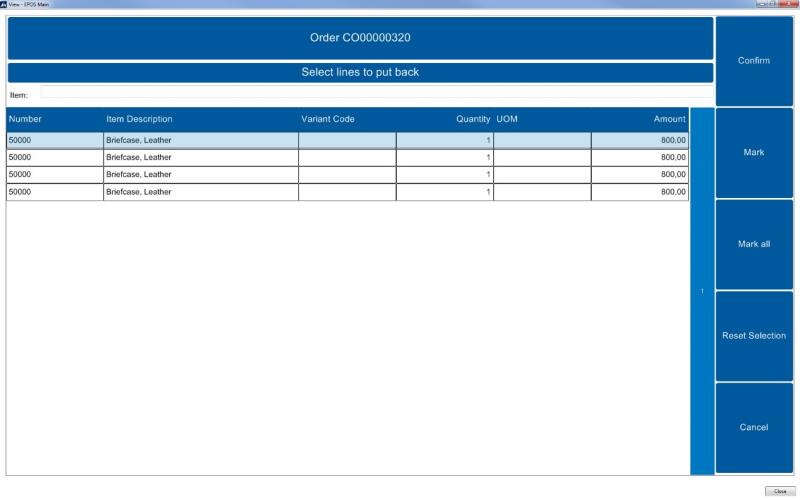
When all items have been put back to their place in the store, the staff member selects the lines and presses the Confirm button.
Now the CO is fully processed and only visible in Back Office as a posted Customer Order.