Links can be added to Nodes in a Hierarchy. In LS Nav there are two different types of Hierarchies:
- Item/Deal: For a Hierarchy of this type you can add Item and Deal links.
- Store/Warehouse Loc./Customer: For a Hierarchy of this type you can add Store, Store Group, Warehouse Location, Customer, and Customer Group Links.
Links can be added directly to nodes on the Hierarchy Node page:
- Navigate LS Retail - BackOffice - Product Design - Hierarchy.
- Select the Hierarchy you want to work with, and click the Edit Hierarchy action.
- Select the Node you want to work with, and then at the bottom of the page add the links for the node.
The following link types can also be added to Hierarchy Nodes directly from their respective list or card pages in BackOffice.
| To | Action |
|---|---|
| Add an Item to Hierarchy Nodes | Go to LS Retail - BackOffice - Product Design - Retail Items. An Item can be linked directly from here by clicking the Item to Hierarchies action or from the Retail Item Card. |
| Add a Deal to Hierarchy Nodes | Go to LS Retail - Member Management - Offers - Deals. A Deal can be linked directly from here by clicking the Deal to Hierarchies action or from the Deal Card. |
| Add a Store to Hierarchy Nodes | Go to LS Retail - BackOffice - Store Management - Stores. A Store can be linked directly from here by clicking the Store to Hierarchies action or from the Store Card. |
On the Actions menu in the above cards (Retail Items, Deals, or Stores), select the appropriate Hierarchies action (Item, Deal, or Store to Hierarchies) to display the Hierarchies and Nodes page:
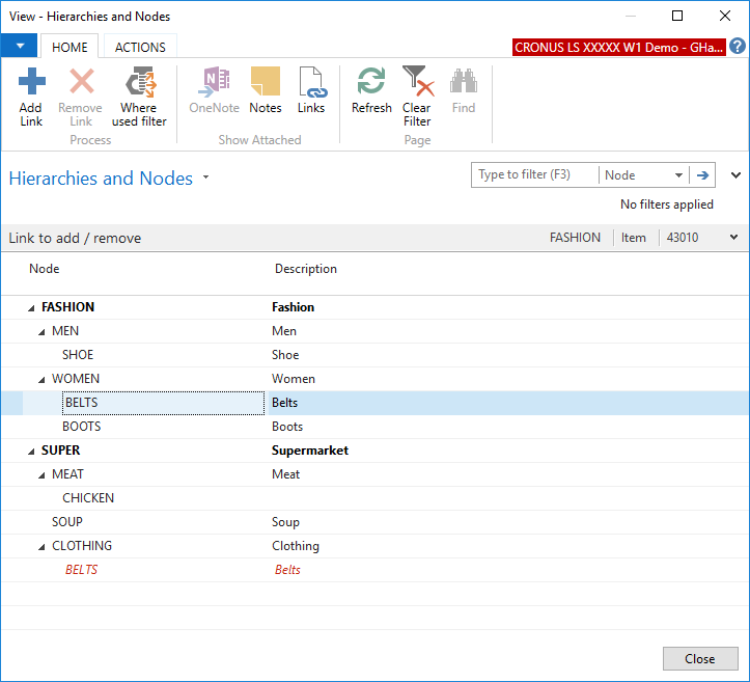
In this example there are two Hierarchies, FASHION and SUPER (bold lines). The red line means that there is already a link to the Clothing / Belts node in the SUPER Hierarchy.
The Link to add / remove FastTab contains details about the link that is being managed in this example. Some of the details are promoted as in this case a node was selected in the FASHION Hierarchy, and links are being processed for Item number 43010.
Nodes can be selected from all Hierarchies. Red lines represent nodes that are already linked. If you select a red line, the Remove Link action is enabled and the Add Link action is disabled.
To locate existing links to nodes, click the Where used filter action. The node names are then displayed, and when a node is selected the Hierarchy Code is updated in the Link to add / remove FastTab. Then, if you click Where used filter again, the Hierarchy is expanded.
Note: Only Hierarchies of the Store type are displayed when you are managing Store Links, and similarly, only Hierarchies of the Item/Deal type are displayed when managing Item and Deal links.
See Also
How to: Bulk Insert Items and Deals to Hierarchy Nodes
How to: Bulk Insert Stores, Warehouses, and Customers to a Hierarchy Node