To run the Search Dialog from a Menu Button you set the SEARCH POS Command on the Button. Optionally, you can specify a POS Search Setup ID in the Parameter field. If the Parameter field is blank the system will use the #DEFAULT POS Search Setup.
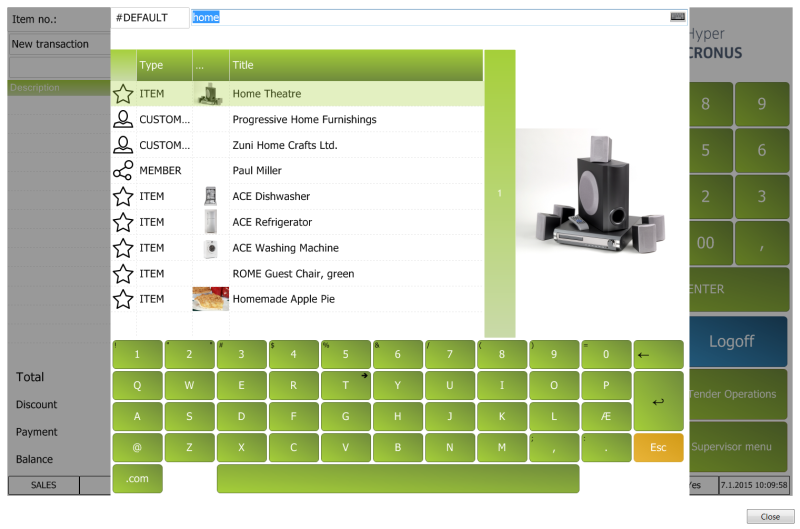
This picture shows the Search Dialog running the #DEFAULT Search Setup. Typing home into the input control shows result from 3 indexed tables, ITEM, CUSTOMER and MEMBER. Now we can select any one of the results and the active POS Transaction will be updated depending on the type of record we choose. Double clicking on a record will insert the record without closing the Search Dialog.
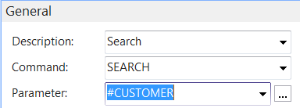
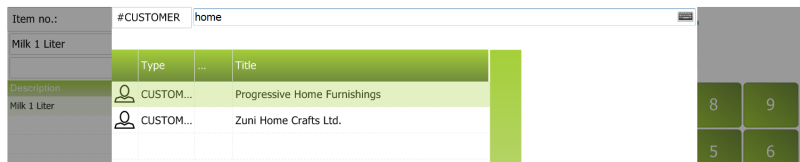
Because the #DEFAULT POS Search Setup does not have a special Search Index Setup we get results from many tables. If, however, we pass a parameter with the SEARCH Pos command, e.g. #CUSTOMER we get different results because the #CUSTOMER POS Search Setup uses the CUSTOMER Search Index Setup which only searches the customer table.
Search Filtering is done by pressing the Input Control Caption (or assist icon).
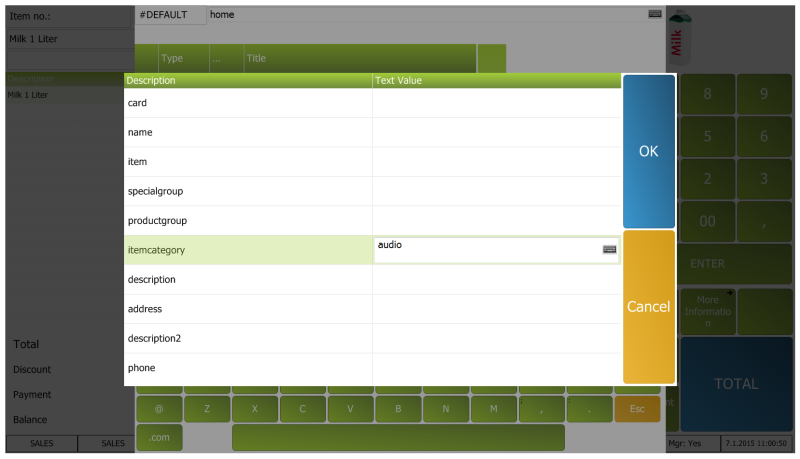
The Search Filter Dialog can be used to set a filter text on any of the alias names that have been specified in the Search Index Setup. Here we filter the home search further by setting the itemcategory to audio.
The result is then filtered to that itemcategory. The Info Menu on the Search Dialog will show the filters that have been applied to the search.

Searching with the POS Input Control
The #CURRINPUT input control on the pos can be configured to use a search as you type into it.
To do this you edit the input control and select a POS Search Setup in the Input Change Search ID.
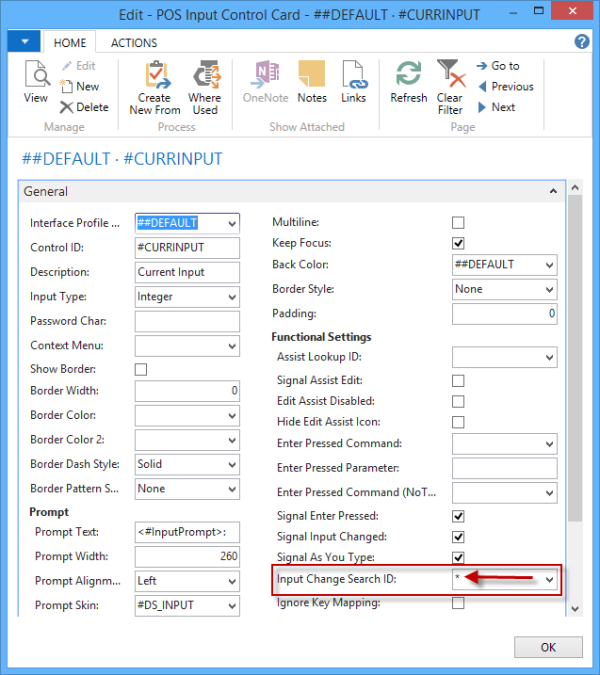
It is possible to have the system select the appropriate Search Setup based on the Function Mode of the POS. To do this you need to put the asterix sign (*) as the Search ID.
Also the Signal Input Changed and Signal as You Type field should be marked for the search to work.
When typing into the #CURRINPUT Input Control the system will check if there is a setup for the current Function Mode and if so, show a dropdown grid with the search result.
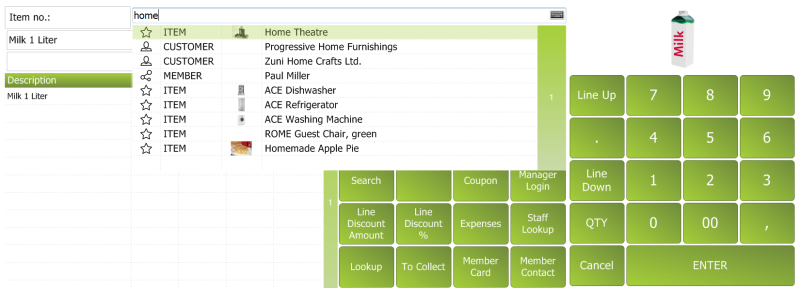
To select an item from the search result grid the user will need to use the keyboard arrow keys to navigate to a record and press Enter, or simply click on an item in the dropdown grid.