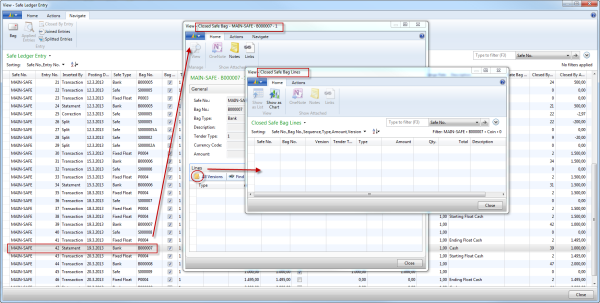
From the Safe Bag List you can view the Change Log for a safe bag of any type:
- Go to LS Retail - BackOffice - Store Management - Lists - End-of Day - Safe Management - Store Safes, and select a safe.
- On the Navigate action menu, click Open Bags.
-
The Safe Bag List card for open bags appears. On the Navigate action menu, click Change Log.
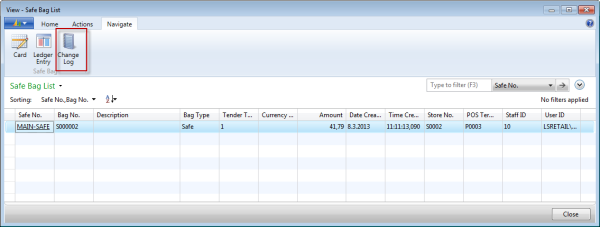
The following paths lead to the change logs for each type of bags.
For Open/Safe Bags:
- LS Retail - BackOffice - Store Management - Lists - End-of Day - Safe Management - Store Safes. Select a safe.
- On the Navigate action menu, click Open Bags. A Safe Bag List card for open bags is displayed.
- On the Navigate action menu, click Change Log.
For Uncounted Bags:
- LS Retail - BackOffice - Store Management - Lists - End-of Day - Safe Management - Uncounted Bags.
-
On the Navigate action menu, click Change Log.
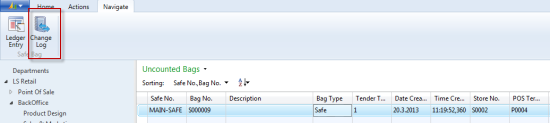
For Closed Safe Bags:
- LS Retail - BackOffice - Store Management - Lists - End-of Day - Safe Management - Store Safes, select a safe.
- On the Navigate action menu, click Ledger Entries. The Safe Ledger Entry card opens.
- Select an entry for a closed bag, and on the Navigate action menu click Bag.
-
Here you find the Closed Safe Bag. On the Closed Safe Bag Lines FastTab you can see whether any changes have been made.