Replicate from NAV 2009 or older to NAV 2013 or newer
To be able to replicate data from DD3 to DD2, the Distribution Server name needs to get the Mode DD2 and type in the port number for the DD2 Service.
If you have an older version of LS Retail NAV that does not include this form, you can type in the Distribution Server field: STORE3:16750:DDOLD
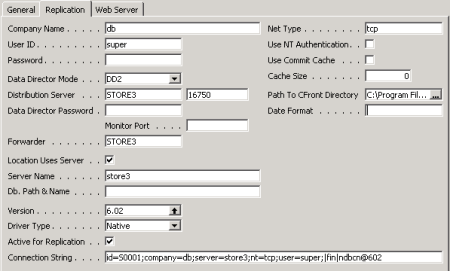
When replicating from DD2 host to DD3 host, nothing needs to be set up in the Distribution Location card for the DD3 locations. Both will only include the Host name, no port information or connection property information, unless any of the DD is not running on the default port.
Replicate from NAV 2013 and newer to NAV 2009 or older
You can upgrade only HO to DD3 while all Stores and POS are still running DD2.
If you have DD 2.28.x you may leave that installation on the Server that you are about to update, just disable the DD2 Services so it will not start up, too, as it will conflict with ports on the DD3 Service. If you wish to uninstall DD2, make sure when installing DD3 after to select DD2 Client for NAV, to install the DD2 clients needed for NAV, if it still uses the older controls to communicate with DD.
There are two things you need to look at. All Services and Ports used by the older DD2 setup can be added to the DD3 setup. If your HO Server was running DD2 set up something like this, 3 DD Services for DD processing and 1 for TS requests, you need to add these service names and ports into the DD3 Configuration.
-
Add all DD2 Service names (DDHO;DDIN;DDOUT) as Aliases in the Base Config tab.
-
Add all DD2 Port numbers, for DD Servers and TS Servers, to the Data Port field in the App Config tab.
In the NAV Distribution Location card, set the DD Mode to DD2, or for older LS Retail NAV form change the Distribution Server name for all Locations, still running DD2 to <DDServer> :16750:DDOLD.
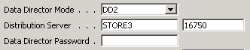
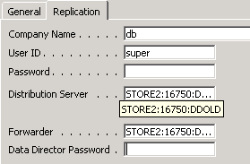
HO running DD3 and any other location running DD3 do not need any change, only the Server Host name is needed as Distribution Server name.
Note: No changes are needed at the Store or POS running DD2 to be able to communicate with DD3 at HO, there everything stays the same.
Replicate from BC 17.5 and newer to older NAV / BC
In LS Central 17.5 table structure was changed to include prefix / surfix to table and field names and in some case names were changed to shorten them. This makes it impossible for LS Data Director to map tables and fields automatically together.
To be able to replicate between those versions, a Table and Field mapping is needed in LS Central Scheduler Sub Job.
Depending on where the Scheduler job will be executed, table design for the remote location has to be read.
- Go to Distribution Location for the remote location, and click Actions - Functions - Read Design.
- Select the Tables and fields option to get all design setup, or, if only a few tables are going to be replicated, you can select Tables only, and then later only fields for those tables can be updated with field data by clicking Related - Dis.Location - Dist. Location Tables.
- Select a table to update, and click Actions - Functions - Fetch Fields.
It is not necessary to read design for the local location where Scheduler will be running.
To map tables and fields
- Open the Scheduler Subjob card for the table, and set the remote location as From-Location Design or To-Location Design, depending on where the remote location is (Pull or Push).
- Select the correct Table ID for both From and To Locations.
- Click Related - Subjob - Transfer Field List and map all fields together.