You can "ping" the LS Commerce Web Service to see if the WCF web service is working properly. First, ping them from a browser on a laptop (Chrome/Edge or Firefox recommended), and later from a browser on your mobile phone.
The ping checks the connection to LS Commerce Service and LS Central SQL Server Databases and LS Central Web Service.

If the ping is successful, a “pong” reply is returned. After a successful ping, an LS Retail Mobile App should be able to connect with the web service. If the ping returns an error, see
In Windows Explorer, open C:\LS Retail\LSCommerce\LSCommerceService\. The \Sql folder has all the sql scripts used and the \logs folder has the logfile.txt which is extremely useful.
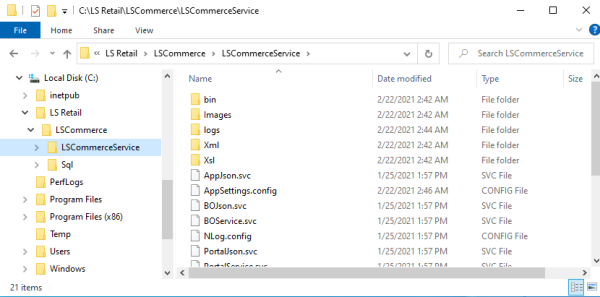
You can change the values you entered during the setup in the AppSettings.config file or in the Commerce admin portal, depending on the setup.
The connection strings to LS Commerce and LS Central SQL databases are stored in the AppSettings.config file
Note: If you change these configuration files, you must restart the LS Commerce Service web service. To restart go to IIS Manager and restart Web Service where LS Commerce Service is located. You should not change the web.config, unless you setting up SSL.
Single-tenant
After a successful installation, the next step is to validate the data entered during the installation. Configuration for Single-tenant is stored in the Appsettings.config file, located where LS Commerce Service is installed.
Multi-tenant
After a successful installation, the next step is to create the first tenant, see Commerce Admin Portal. When you have set up the first tenant, your next step is to validate the tenant configuration.
Note: LS Commerce Admin Portal is only used for Multi-tenant configurations; it is not needed in a Single-tenant setup.
LS Central in SaaS
- Set correct Protocol for LS Commerce to communicate with LS Central in SaaS.
- Open the Appsetting.config file.
- Find the following line in this file:
<add key="BOConnection.Nav.Protocol" value=""/>
The default value is Ss13 but you have to know which value to fill in here for your cloud instance.
Tip: If you are not sure, try one of the valid options Ssl3 - Tls - Tls11 - Tls12 - Tls13 and see which one works. The most common option for SaaS is Tls12.
See also