After going through the configuration in Shopify, you can add a store to the LS Central Shopify Administration page.
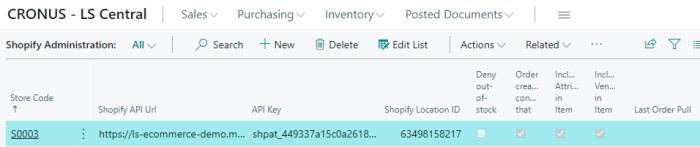
The table below lists the page's available fields:
| Field | Description |
|---|---|
| Store Code | The LS Central store to assign as Shopify store. |
| Shopify API Url | Consists of the Shopify store name and the Webhook version. |
| API Key | A key created in the Shopify API Credentials page. |
| Shopify Location ID | The ID of the Shopify location that will handle inventory status. This ID can be found in the URL when looking at the Shopify Location setup. |
| Deny out-of-stock shopping | If you select this check box, Shopify cannot sell items that are out of stock. |
| Order creates contact that are missing | Creates a member contact, if the contact is not found by email address when a Customer Order is created and assigned to the order. |
| Include Attribute in Item HTML | Adds Item attribute as a table in the Shopify product description. |
| Include Vendor in Item HTML | Adds vendor and the vendor item number to the Attribute table in the Shopify product description. |
| Use MetaData | Use MetaData to send down Attribute data and other Table data that have been mapped in Shopify MetaData Mapping. |
| B2B Mode | B2B Mode uses Customers instead of Member Contact. Customer can only be created in LS Central and pushed to Shopify. Customer Order will use Customer No. instead of Member Contact Card. |
| Last Order Pull and Last Customer Update Last Price Update |
This is the time when LS Central last pulled either order or customer data from Shopify, or sent Price updates to Shopify. Tip: If you need to move the Pulling/Pushing back or reset it, you can change the date and time value here. |
Mapping
Click Related in the menu toolbar, and open the Mapping menu.
Tender Type: Maps payment provider in Shopify to Tender type in LS Retail. The payment providers' Gateway code that is used for the mapping can be seen when looking at the debug message for Shopify Transaction.
In demo mode, Gateway is BOGUS.
Shipping Agent: Maps Shipping agent information from Shopify to Shipping agent in LS Central. The Shipping agent codes can be found in debug message for Shopify Order under shipping_lines. Source is mapped to Shipping agent code and Code is Shipping agent Service Code.
In demo mode, Source is SHOPIFY and Code is STANDARD.
CaC Store: Maps Shopify pickup location to LS Central Store. Shopify Location code is the name of the Location that can be seen as bold text in the Local Pickup setup.
Location: Includes Inventory status for other locations than the default Web Store location. Maps the Shopify Location (location ID) to the LS Central Store.
Meta Data: Maps Field data from tables to Meta Data entries. Attribute names can be mapped to different Meta Data entries, default Attribute name will be used.
Note: All Meta Data will be created under lsretail namespace in Shopify.
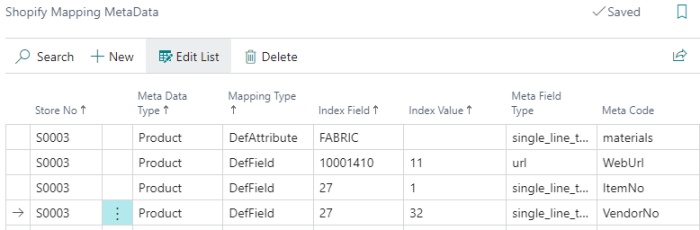
- Meta Data Type: Type of Shopify Meta Data
- Meta Field Type: Shopify Meta Type
- Mapping Type: Rename Attribute name (DefAttribute) or use data from Field in a Table (DefField)
- DefAttribute:
- Index Field: Attribute name to rename.
- Meta Code: Shopify meta data name to use for attribute.
- DefField:
- Index Field: Table ID.
- Index Value: Field ID to get data from.
- Meta Code: Shopify meta data name to use for field data.
Shipping Cost
All orders with a shipping cost will use Web Store Shipping Cost Item that has been set in the Store Card for the web store to assign shipping cost to the order.
Note: Make sure the Price Includes VAT check box is selected in the item used for Shipping cost to handle VAT calculation.
Customer Order Setup
When Customer order changes status, is shipped or posted, a webhook message is sent back to Shopify to update the status of the Order. As LS Central core functions are using Commerce Service to deliver this message, that process need to be disabled, as Shopify does not use Commerce to handle these calls.
Open Customer Order Setup and choose an Omni Func. Profile ID that has empty value for Omni Server Service URI or remove it from the currently selected profile. This will disable LS Central sending messages to Commerce that will cause error.
Other LS Central Setups
Store Setup
- Select the Web Store check box in the LS Commerce FastTab and assign all values needed in the Web Store fields.
Customer Order Setup
- Select the Send LS Commerce Messages check box in the LS Commerce FastTab.
Debugging
It is possible to debug the communication that goes between Shopify and LS Central.
Open Web Service Setup and in the Logs FastTab, set Server Log Level to All. Then, when LS Central sends a request to Shopify, it will be logged in the Web Request Log which can be found on this page by clicking the Related - Web Service menu. Shopify communications will have the Request ID Shopify-xxxx.