To enable PAN number validation in LS Central, follow these steps:
-
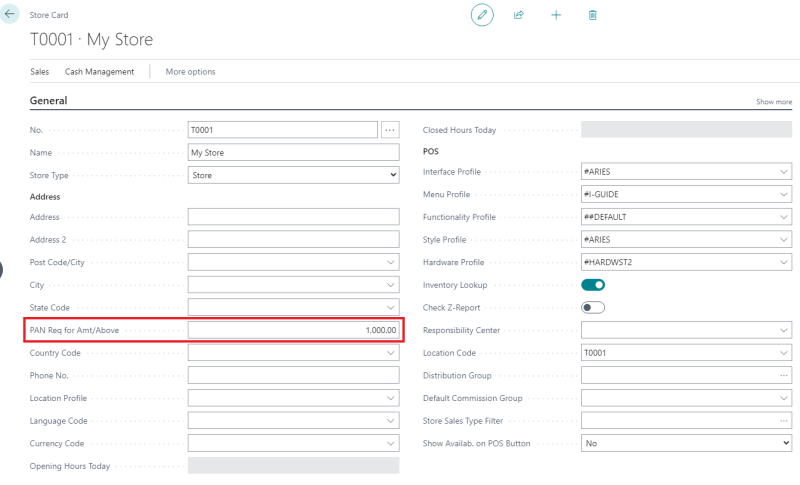
Click the
 icon, enter Store List, and select the relevant link.
 -
In the General FastTab, set the amount limit where a PAN number is required or mandatory. For example, if the limit is set to 1000 Rupees, customers must provide a valid PAN number for transactions exceeding this amount.
To validate the PAN number:
-
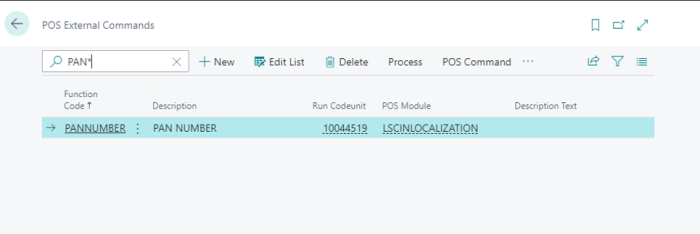
Open the POS External Commands page.
-
Type in the PANNUMBER command. This command is used to register and execute the IN-Localization command for PAN number validation.
-
The validation checking will verify the entered PAN number.
For example in POS, if the item's price added to the sale line is 5000 Rupees, which exceeds the store's setup limit of 1000 Rupees, the system will prompt for entering the PAN number.
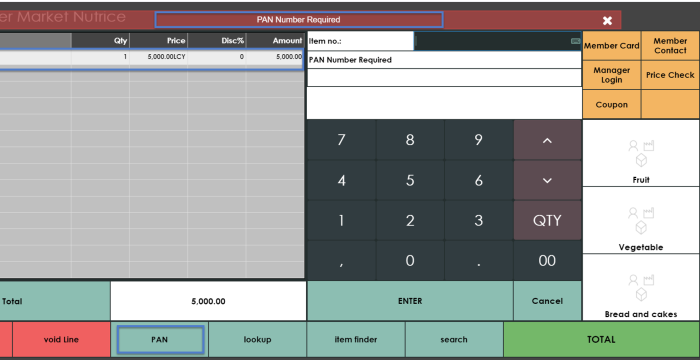
You can enter the PAN number directly or select the customer card, which will save the PAN number for completing the transaction.
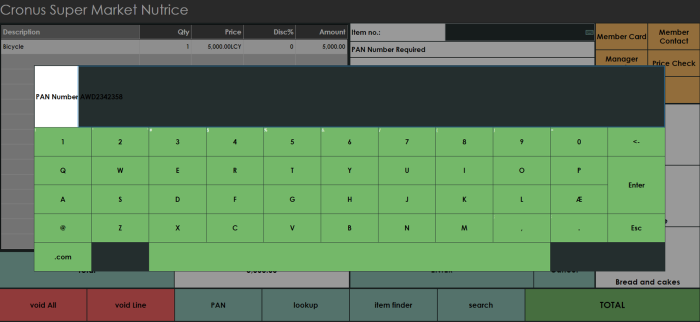
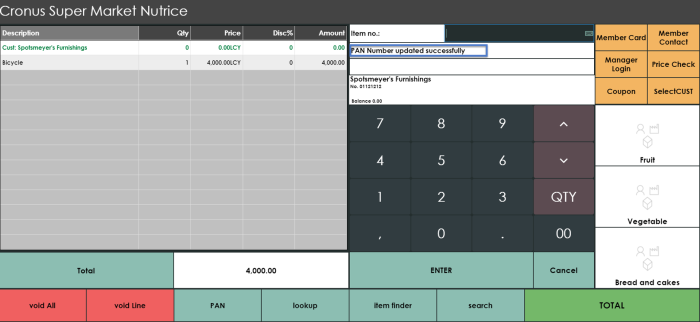
Once the PAN number is entered correctly, the system will display a message indicating that the PAN number has been updated successfully.