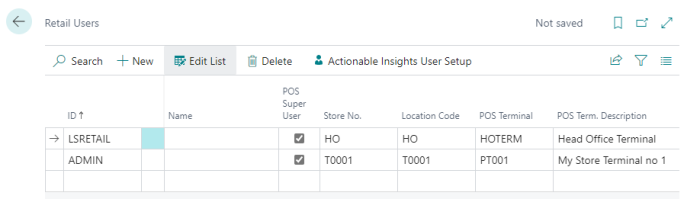
With Retail users you can configure which store and POS terminal is loaded when the POS is launched for the Windows user.
- Select the Windows account that is to be configured.
Note: LS Central uses the Windows login to determine what store and terminal are launched. If a different user is required than what is logged into for Windows, either launch Central as a different user or in LS Central Start defining the appropriate user name and password.
- If the Windows user is to have the ability to update the POS (menu structure, button names, functions, and so on), you must select the POS Super User check box. Typically, a standard POS is assigned a generic user and this user is not defined as a POS Super User. POS Super Users are usually non-generic accounts for the users that are considered data masters.
- Select the desired store. The location field will automatically populate with the location code assigned to the store.
- Select the desired POS Terminal from the list of terminals which are filtered to the store that was selected previously.