In this article
After going through the configuration in Shopify, you can add a store to the LS Central Shopify Administration page. You can map multiple Shopify stores to different Central stores, just add a new line. Each store can have its own Key and URL and mappings.
The table below lists available fields on the page:
| Field | Description |
|---|---|
| Store Code | The LS Central store to assign as Shopify store. |
| Shopify API Url | Consists of the Shopify store name and the Webhook version. |
| Shopify API Key | A key created in the Shopify API Credentials page. |
| Shopify Location ID | The ID of the Shopify location that will handle inventory status. This ID can be found in the URL when looking at the Shopify Location setup. |
| Line Discount Code | Default Line Discount Offer to register a Shopify discount when a Shopify order includes discounts. |
| Product Delimiter | Delimiter used to join Item and Variant Code in Shopify SKU (Default -). |
| Missing Contact Name | Default text used for missing Customer First/Last Name. If empty, a missing name will give an error. |
| Deny out-of-stock shopping | If you select this check box, Shopify cannot sell items that are out of stock. |
| Order creates contact that are missing | Creates a member contact, if the contact is not found by email address when a Customer Order is created and assigned to the order. |
| Include Tax in Prices | Set this value to the same as in Shopify Admin - Settings - Taxes and duties - Decide how tax is charged. If selected, all prices will be sent including tax, no matter the setting in the Retail Item card. |
| Charge Tax on variant | Set Charge Tax on variant or product on the Shopify Product card, no matter the setting in the LS Central Item card. If not selected, Price Include VAT is used. |
| Include Item HTML | Adds Item HTML data into Product description in Shopify. |
| Include Attribute in Item HTML | Adds Item attribute as a table in the Shopify product description. Used with Include Item HTML. |
| Include Vendor in Item HTML | Adds vendor and the vendor item number to the Attribute table in the Shopify product description. Used with Include Item HTML. |
| Use MetaData | Use MetaData to send down Attribute data and other Table data that have been mapped in Shopify MetaData Mapping. |
| Include Attributes in MetaData | Send all Item attributes as MetaData. If set to false, Item attributes need to be mapped in MetaData Mapping to specify which ones should be sent. Used with Use MetaData. |
| B2B Mode | B2B Mode uses Customers instead of Member Contact. Customer can only be created in LS Central and pushed to Shopify. Customer Order will use Customer No. instead of Member Contact Card. |
| Delete Product | When an item is taken out of distribution, this setting deletes the product or marks it as draft in Shopify. |
| Last Order Pull and Last Customer Update Last Price Update |
This is the time when LS Central last pulled either order or customer data from Shopify, or sent Price updates to Shopify. Tip: If you need to move the Pulling/Pushing back or reset it, you can change the date and time value here. |
Mapping
- Click Related in the menu toolbar, and open the Mapping menu.
Note: To find the correct data that is needed for mapping, it is best to look at the Shopify Order Data when pulling an order from Shopify. To see the Order data, activate Logs in Web Service Setup, and the Request and Response Data will be logged in the Web Request log.
Tender Type
Maps payment provider in Shopify to Tender type in LS Central. The payment providers' Gateway code that is used for the mapping can be seen when looking at the debug message for Shopify Transaction.
- Map the Shopify Gateway code to the External Code 1 field, and map with the LS Central Tender type code in the Code 1 field.
In demo mode, Gateway is BOGUS.
Shipping Agent
Maps Shipping agent information from Shopify to Shipping agent in LS Central. The Shipping agent codes can be found in the debug message for Shopify Order under shipping as Source and Code.
- Map the Shopify Source to the External Code 1 field and Code to External Code 2, and map with LS Central Shipping Agent Code in the Code 1 field and Shipping Agent Service Code in the Code 2 field.
In demo mode, Source is SHOPIFY and Code is STANDARD.
CaC Store
Maps Shopify pickup location to LS Central Click and Collect Store. the Shopify Location name is the name of the Location that can be seen as bold text in the Local Pickup setup in Shopify.
- Map the Shopify Location name to External Code 1, and map with LS Central Store Code in the Code 1 field.
Locale
Send Translation for Items to Shopify. Note: Only Item Description and HTML data are supported.
Set up language in Shopify in Settings. Map Shopify locale code to the LS Central language code.
- Get Locale: Get available Shopify languages from Shopify.
- Update Locale: Used to Publish or Un-publish language in Shopify.
- Send Translation: Send translation data for selected language to Shopify.
Location
Maps extra Shopify Locations to LS Central Stores to include extra Inventory status for other locations than the default Web Store location. The Shopify location ID can be found at end of the browser URL when open up the location in Shopify setting.
- Map the Shopify Location Id to the External Code 1 field, and map with LS Central Store Code in the Code 1 field.
Item Data
Mapping of Shopify product and variant IDs to LS Central Item and Variant Codes. This view is only for maintenance purposes or to fix broken links. The whole mapping can be cleared for resetting the mapping between the two systems. Can be useful during testing or implementation.
Meta Data
Maps field in LS Central tables to Shopify Meta Data entry. Fields from Item and Customer tables can be used and all fields in related tables to those (with relationship mapping to Item or Customer). LS CentralAttribute names can be mapped to different Meta Data entries names, if no mapping is done the default Attribute name will be used. If Include Attributes in MetaData is NOT selected, only those attributes that have been mapped, with default name or renamed will be sent to Shopify as Meta Data entry.
Note: All Meta Data will be created under the lsretail namespace in Shopify.
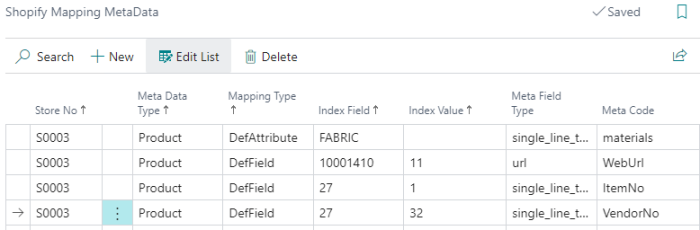
- Meta Data Type: Type of Shopify Meta Data
- Meta Field Type: Shopify Meta Type
- Mapping Type: Rename Attribute name (DefAttribute) or use data from Field in a Table (DefField)
- DefAttribute:
- Index Field: Attribute name to rename.
- Meta Code: Shopify meta data name to use for attribute.
- DefField:
- Index Field: Table ID.
- Index Value: Field ID to get data from.
- Meta Code: Shopify meta data name to use for field data.
Actions
The Shopify Administration page has these actions:
| Action | Description |
|---|---|
| Item - Send Item | Send one Item. Note that if an item is not in distribution for the Shopify store, inventory and prices will not be updated when running Scheduler jobs. |
| Item - Delete Item | Delete one item. |
| Update - Items | Run Scheduler Job code for update Items. |
| Update - Items with Image | Run Scheduler Job code for update Items with Boolean flag checked. |
| Update - Inventory with Reset | Run Scheduler Job code for update Inventory with Boolean flag checked. |
| Update - Inventory | Run Scheduler Job code for update Inventory. |
| Update - Prices | Run Scheduler Job code for update Prices. |
| Update - Customers | Run Scheduler Job code for update Customers. |
| Pull - Orders | Run Scheduler Job code to pull Orders. |
| Pull - Contacts | Run Scheduler Job code to pull Customers and create Member Contacts. |
| Pull - Products | Pulls products from Shopify and maps to LS Central Item, if found by SKU = ItemNo. New Items are not created in LS Central. |
| Connection - Test | Test connection to Shopify. |
Shipping Cost
All orders with a shipping cost will use Web Store Shipping Cost Item that has been set in the Store Card for the web store to assign shipping cost to the order.
Note: Make sure the Price Includes VAT check box is selected in the item used for Shipping cost to handle VAT calculation.
Customer Order Setup
When a Customer Order changes status, is shipped, or posted, a web-hook message is sent back to Shopify to update the status of the Order.
- Select the Send LS Commerce Message check box to activate messages.
Watch the video on YouTube to learn more about LS Central configuration:
Other LS Central Setups
Store Setup
- Select the Web Store check box in the LS Commerce FastTab and assign all values needed in the Web Store fields.
Customer Order Setup
- Select the Send LS Commerce Messages check box in the LS Commerce FastTab.
Debugging
It is possible to debug the communication that goes between Shopify and LS Central.
Open Web Service Setup and in the Logs FastTab, set Server Log Level to All. Then, when LS Central sends a request to Shopify, it will be logged in the Web Request Log which can be found on this page by clicking the Related - Web Service menu. Shopify communications will have the Request ID Shopify-xxxx.